CSS - Cascading Style Sheets
What is CSS ?
- css defines how to display an html document (fonts, colors, layouts etc.)
- were added to HTML 4.0 specification to solve a problem
- usually css styles are specified in an external file
- enables developers to change the layout and look of all documents in a web site by just editing a single file
Need for CSS
- HTML was intended to define the structure of a document (i.e. headings, paragraphs, tables etc.), not the formatting of an element
- when style attributes like font, color, background etc. were introduced, maintaining a large web page in which formatting/style information was scattered all over the document became a nightmare for web developers
- so, HTML 4.0 allowed formatting information to be removed from the document and placed separately (in .css files)
A simple CSS example
		body {background-color: #aabbcc}
		h1 {font-style: italic; font-size: 36pt}
		h2 {color: blue}
		p {margin-left: 50px}
it specifies that:
- the < body > tag should have a background color of #aabbcc
- the < h1 > heading tag should use an italic font of size 36pt
- the < h2 > heading tag should use a blue color for displaying text
- a paragraph < p > tag should start at an offset of 50 pixels on the left
CSS syntax rules
selector { property: value; property: value; …}
- a tag name; ex.:
p { font-family: sans-serif } - a group of tags; ex.:
h1, h2, h3, h4, h5, h6 { color: red } - a class name (with or without a tag name):
p.right { text-align: right } .right { text-align: right } … in html document: <p class="right"> Right aligned text </p> - an ID (with or without a tag name):
div#green { color: green } #green { color: green } … in html document: <div id="green"> Green div… </div> - pseudo-classes and pseudo-elements
Pseudo-classes
-
syntax:
selector:pseudo-class {property: value; …}
selector.class:pseudo-class {property: value; …}
- list of pseudo-classes:
- anchor pseudo-classes:
a:link {color:#FF0000} /* unvisited link */
a:visited {color:#00FF00} /* visited link */
a:hover {color:#FF00FF} /* mouse over link */
a:active {color:#0000FF} /* selected link */
- :first-child: matches an element that is the first child of any other element;ex.:
p:first-child { color: blue } - > selector:first-child: matches an element that is the first child of a specific element; ex.: p > i:first-child { color: blue}
- :lang: adds a style to an element with a specific lang attribute
- :active: adds a style to an element that has keyboard input focus
- anchor pseudo-classes:
Pseudo-elements
-
syntax:
selector:pseudo-element {property: value; …}
selector.class:pseudo-element {property: value; …}
- list of pseudo-elements:
- :first-letter – adds style to the first character of a text
div:first-letter { font-size: xx-large; } - :first-line – adds style to the first line of a text
div:first-line { color: red } - :before – adds content before an element
h1:before { content: url(smiley.jpg)} - :after – adds content after an element
h1:after { content: url(smiley.jpg)}
- :first-letter – adds style to the first character of a text
Adding style sheets to a document
-
external style sheet:
<head> <link rel="stylesheet" type="text/css" href="style.css"/> </head> - internal style sheet:
<head> <style type="text/css"> p { margin-left: 10px } </style> </head> - inline style sheet:
<p style="color: red; margin-left: 10px"/>
Multiple style sheets
-
if multiple style sheets are defined, their priority is (ascending order):
- browser default
- external style sheet
- internal style sheet
- inline style
Background properties
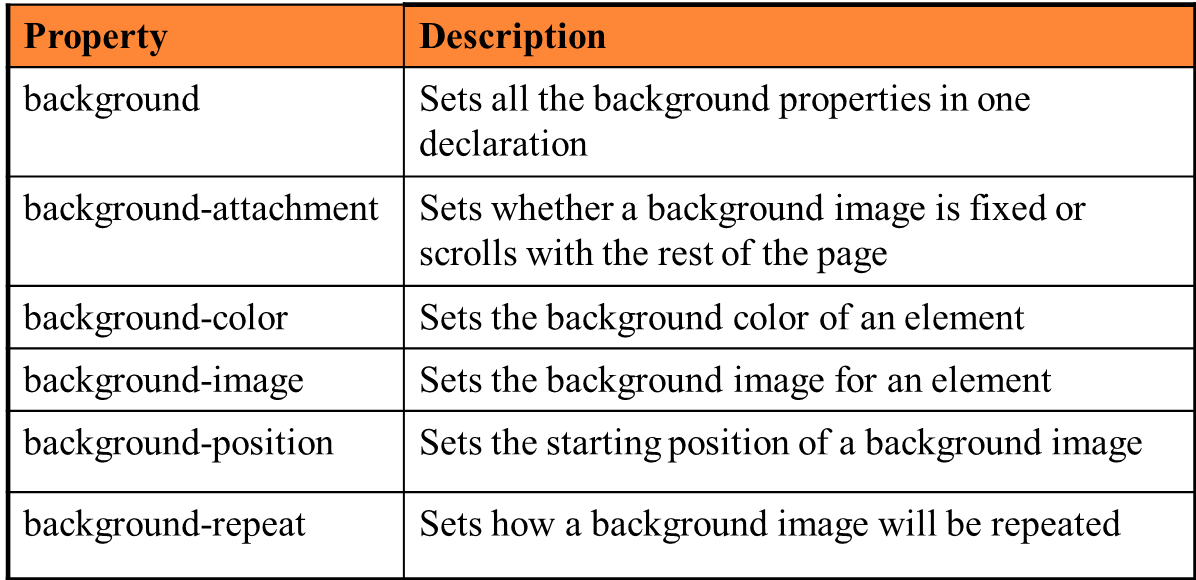
Background CSS example
div
{
background-color:#0f0f0f;
background-image:url(‘back.jpg');
background-repeat:repeat-x;
background-position:top right;
}
Border and outline properties
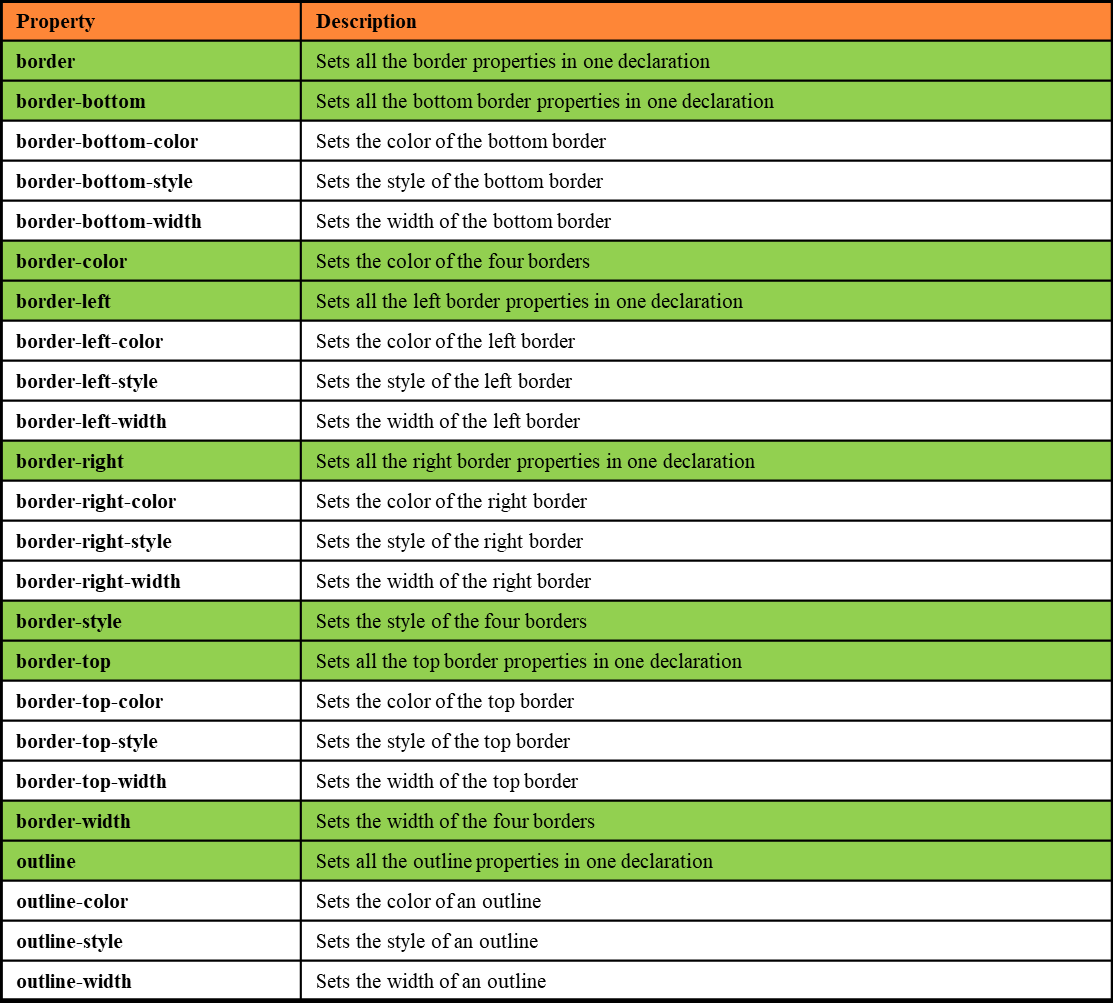
Border CSS example
div {
	border-top-style: solid;
	border-bottom-style: solid;
	border-left-style: dotted;
	border-right-style: dotted;
	border-width: 2px;
	border-color: #00ff00;
}
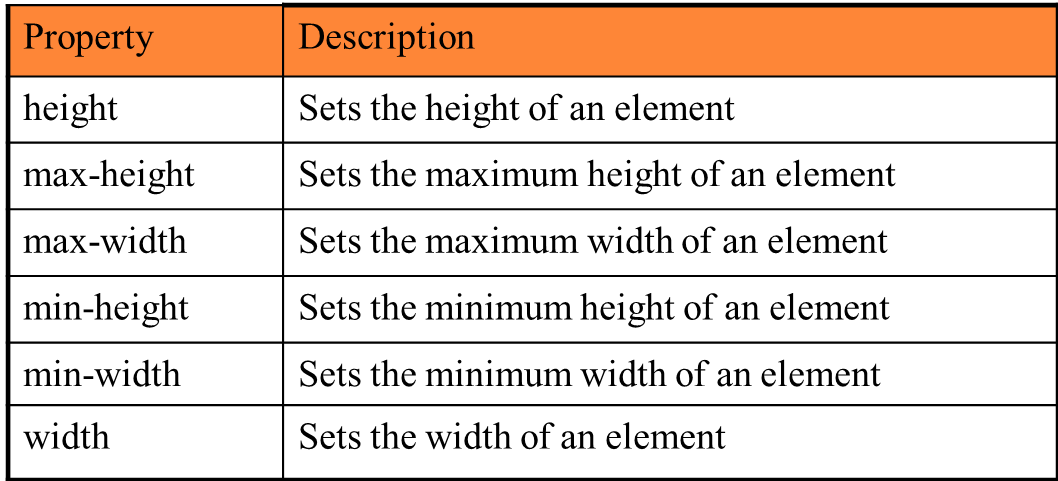
Dimension properties
Font properties
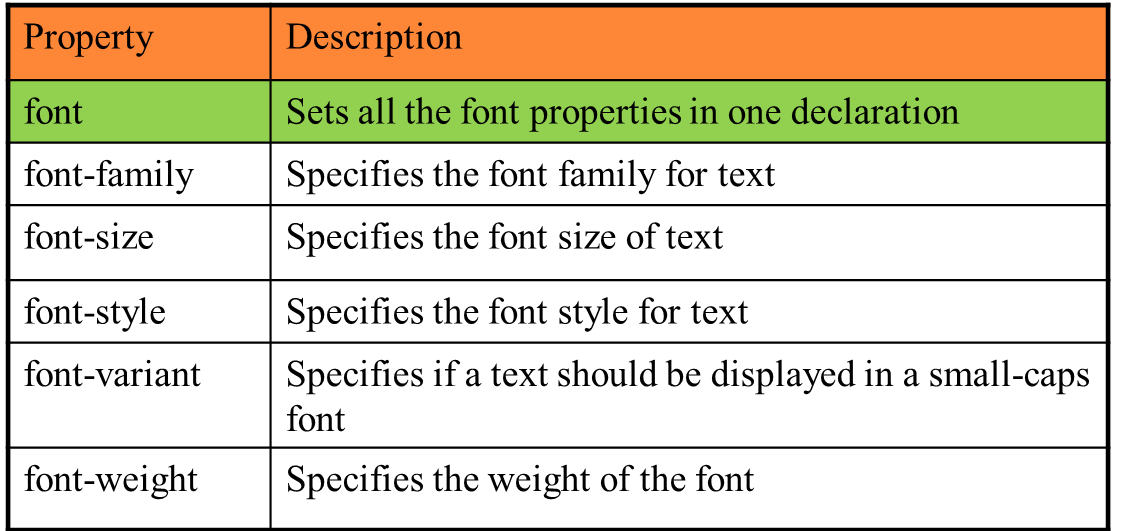
Font CSS example
p, div {
	font-family:”Times New Roman”, Arial, Serif;
	font-style: italic;
	font-size: 12px;
}
List properties
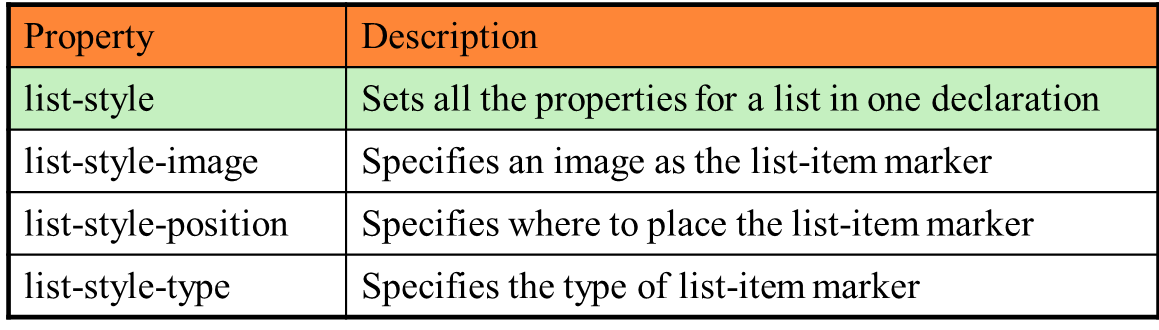
List CSS example
ul {
	list-style-type: circle;
	list-style-position: inside;
}
Margin and padding properties
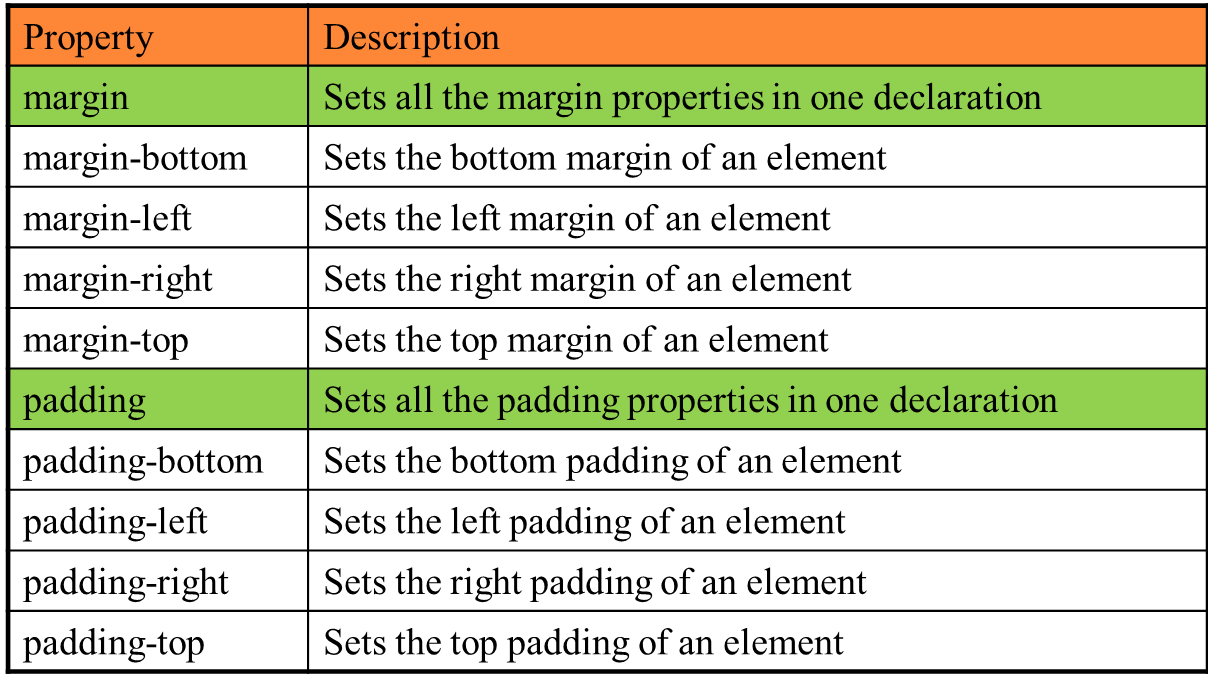
Margin CSS example
div  {
	margin-top: 100px;
	margin-bottom: 100px;
	margin-left: 5%;
	margin-right: 5%;
}
Positioning properties
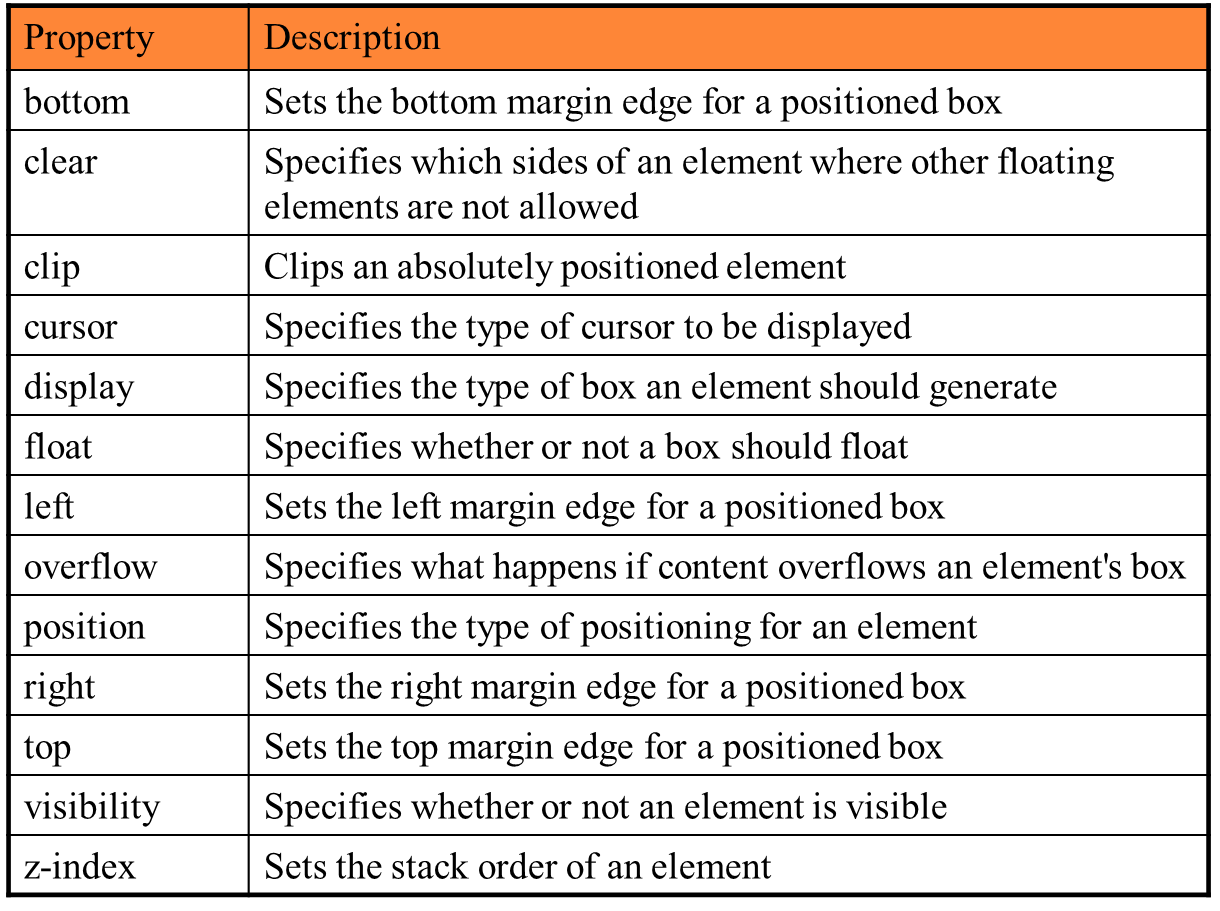
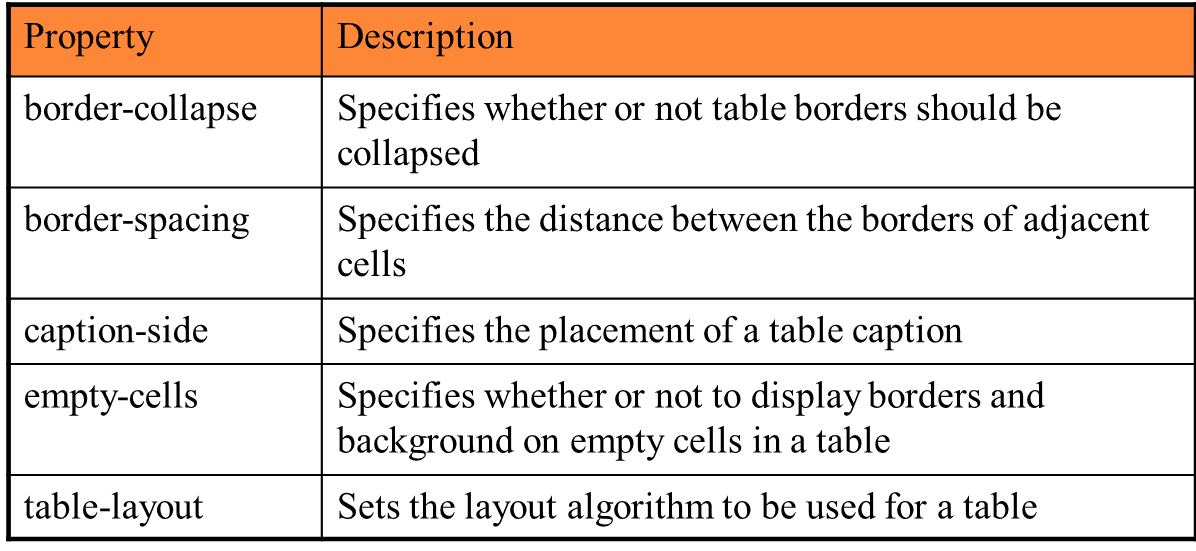
Table properties
Text properties
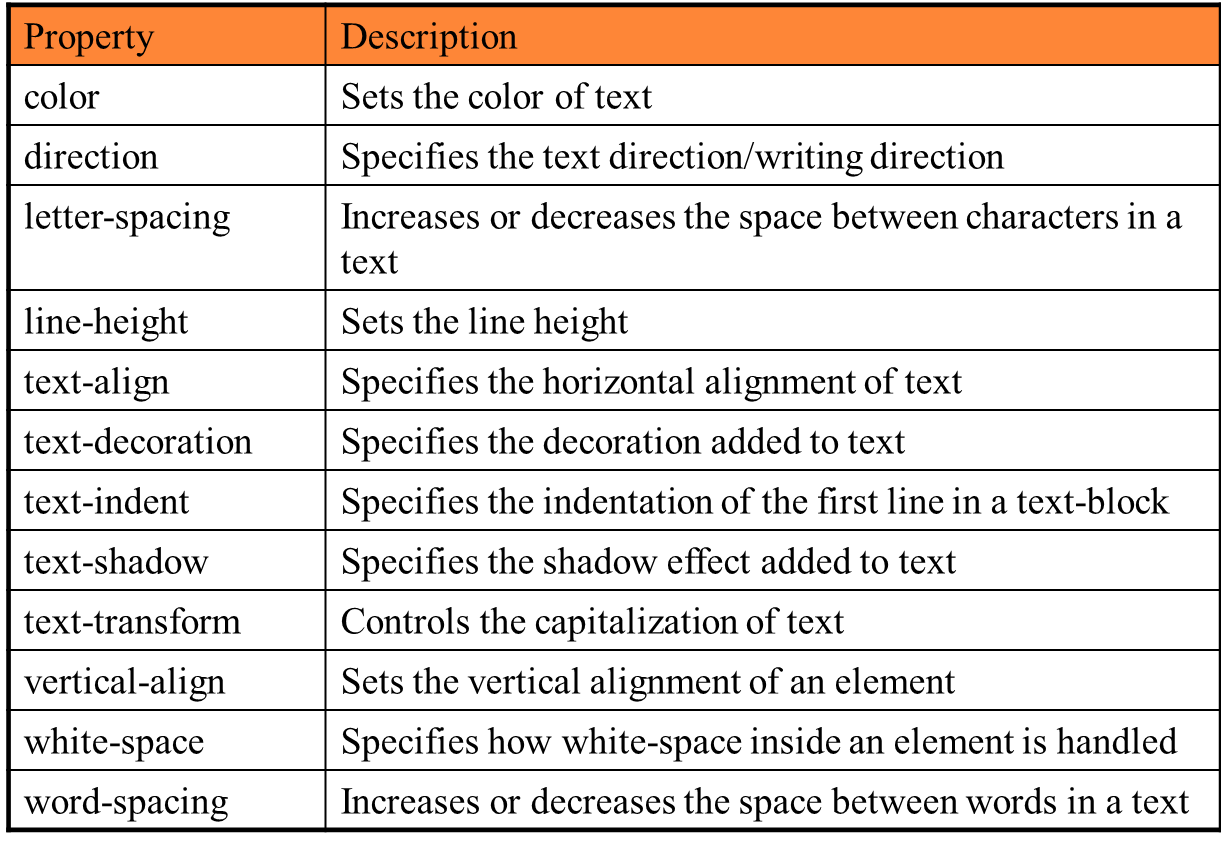
Text CSS example
h1 {
	color: #00ddee;
	text-align: justify;
	text-decoration: underline;
      text-shadow: 10;
}
The CSS box model
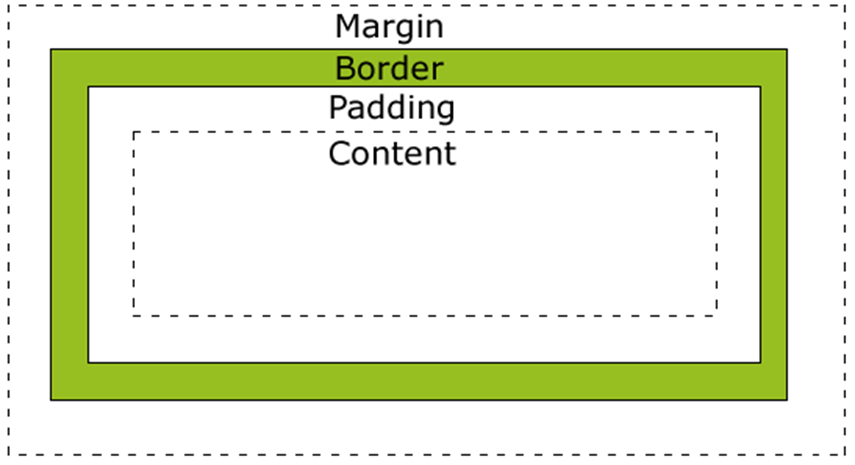
- each HTML element is a “box” from CSS perspective; it has a margin, border, padding and content
The CSS Box model (2)
- Margin: clears an area around the border; does not have a background color, is completely transparent
- Border: lies around content and padding; has the background color of the box
- Padding: clears an area around the content; has the background color of the box
- Content: the actual content (text) of the box
- the height and width attributes do not specify the total height and width of the HTML element; they are calculated by:
Total width=width+left padding+right padding+left border+ right border+left margin+right margin
Total height=height+top padding+bottom padding+top border+ bottom border+top margin+bottom margin
Displaying and visibility
-
hiding an element with consuming space:
visibility: hidden; - hiding an element without consuming space:
display: none; - html elements are displayed as:
- block – element takes the full width available and has a line break before and after it (e.g. h1, p, div)
- inline – element takes as much width as necessary and does not force line breaks (e.g. a, span)
- set the display mode with the display property (e.g. display: inline; display: block;)
- make an image transparent:
opacity: x – on Firefox, x between 0.0 and 1.0
filter:alpha(opacity=x) – on IE, x between 0 and 100.
Positioning
- static positioning: the default mode; a static element is positioned according to the normal flow of the page;
- fixed positioning: element will not move even if the window is scrolled (position: fixed; top: 20px; right: 40px); elements are removed from the normal flow and can overlap other elements
- relative positioning: element is positioned relative to its normal position; element can be moved and overlap other elements , but the reserved space form the element is preserved in the normal flow (position: relative)
- absolute positioning: element is positioned relative to the first parent element that has a position other then static (if none, ); elements are removed from the normal flow and can overlap other elements; (position: absolute)
- z-index property defines the stack order of an element
Floating
- with floating, an html element can be pushed left or right allowing other elements to wrap around it
- html elements can float horizontally left or right (not vertically)
- configured using the the float: left | right | none | inherit display property